Simulator UI
Simulator UI
What this page is for
This page explains the /simulator screen in plain language. You should know where to click, where to type, and where to check when something fails.
Screen map
Think of the page in four working zones:
- Team panel at the top
- Search and import tools in the middle
- Config editor below
- Run button and results at the bottom
Team panel
This is where you build the team before running anything. Treat each card as one slot in your party.
- The + button opens the character picker.
- The x button clears that slot.
- A card shows level, talents, weapon, and sometimes the portrait preview.
- Imported characters appear in the picker after importing from Enka.
- A plan-locked character can appear in the UI, but the sim will reject it when you run.
Example picker flow
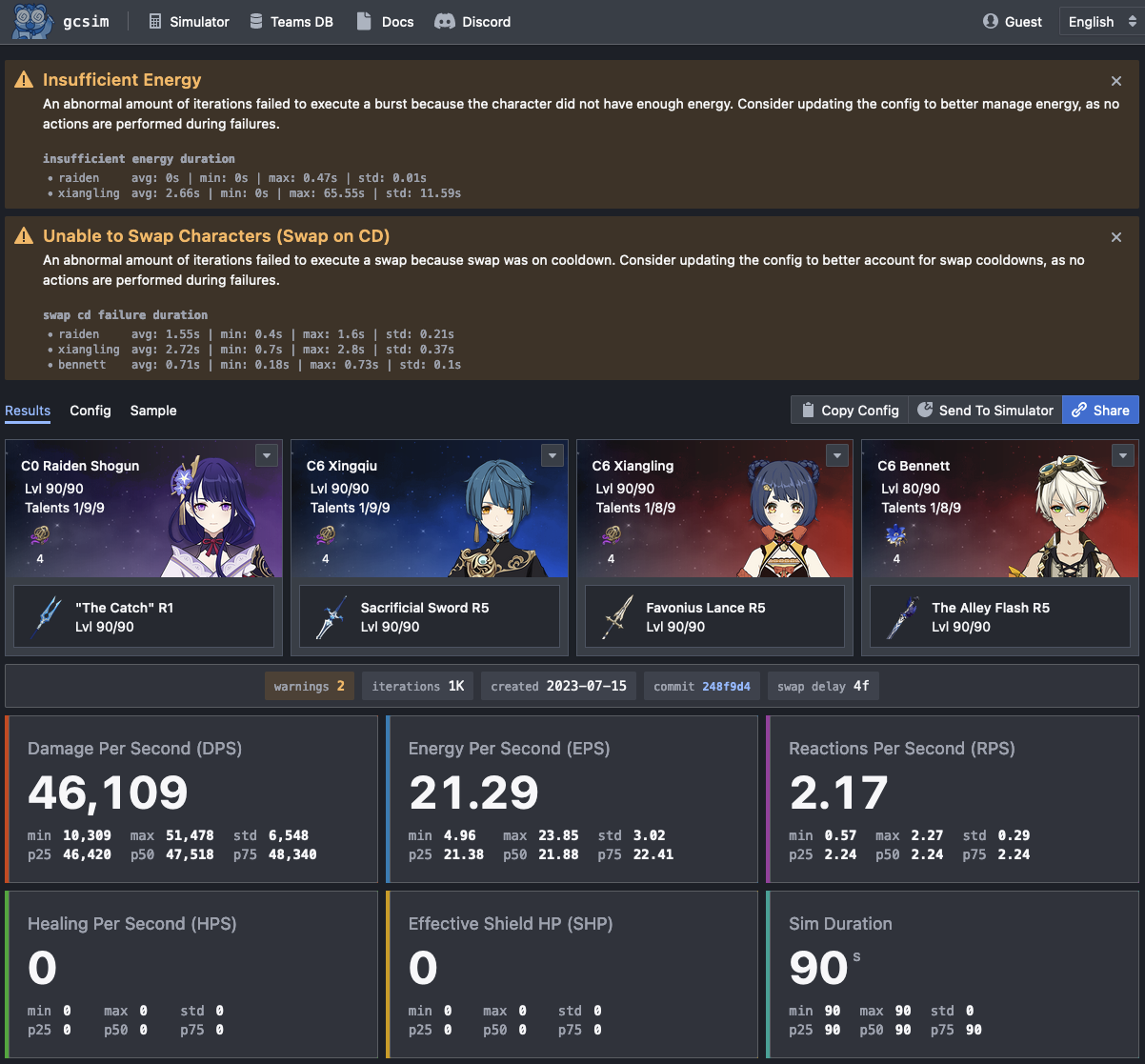
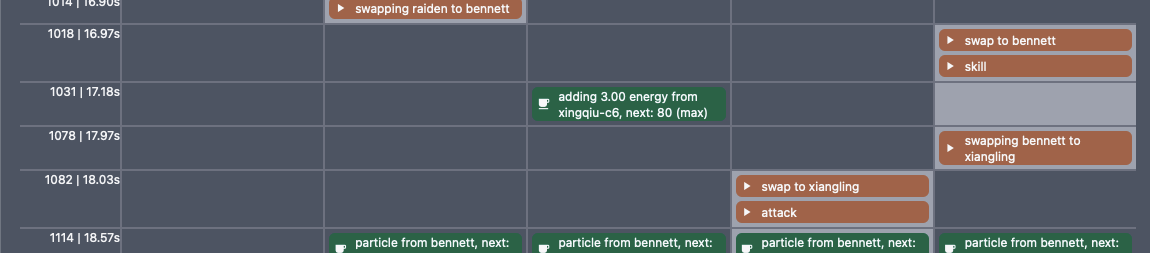
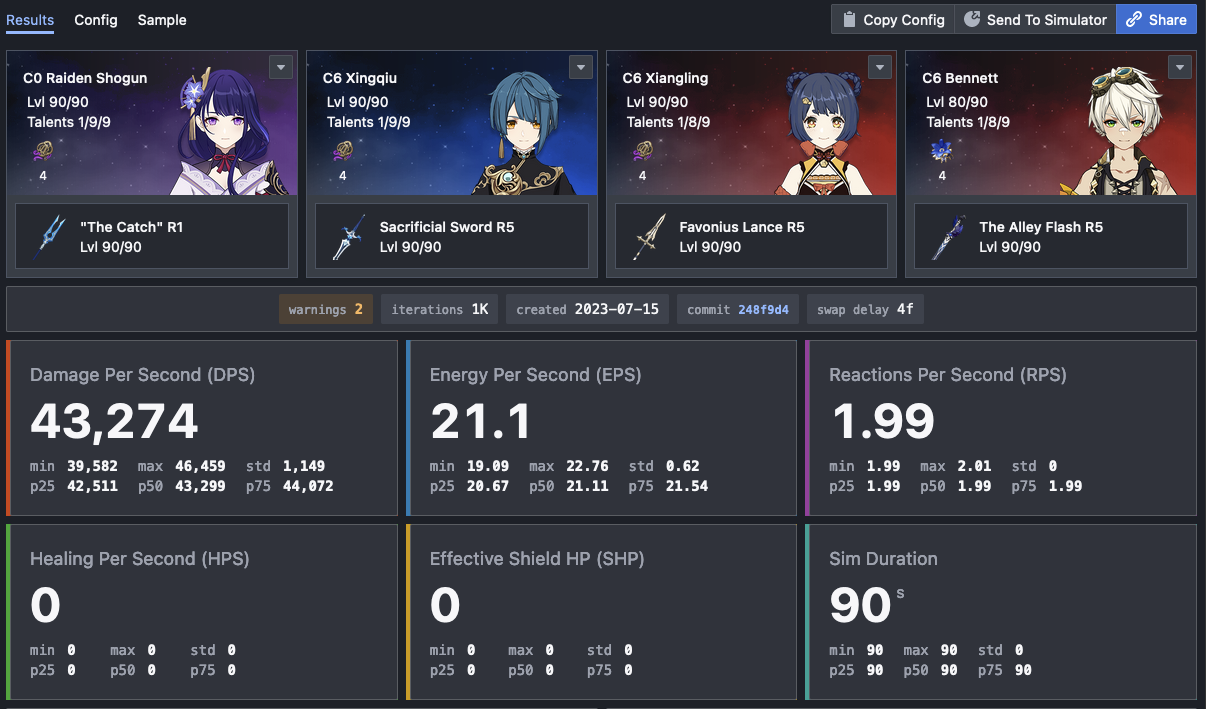
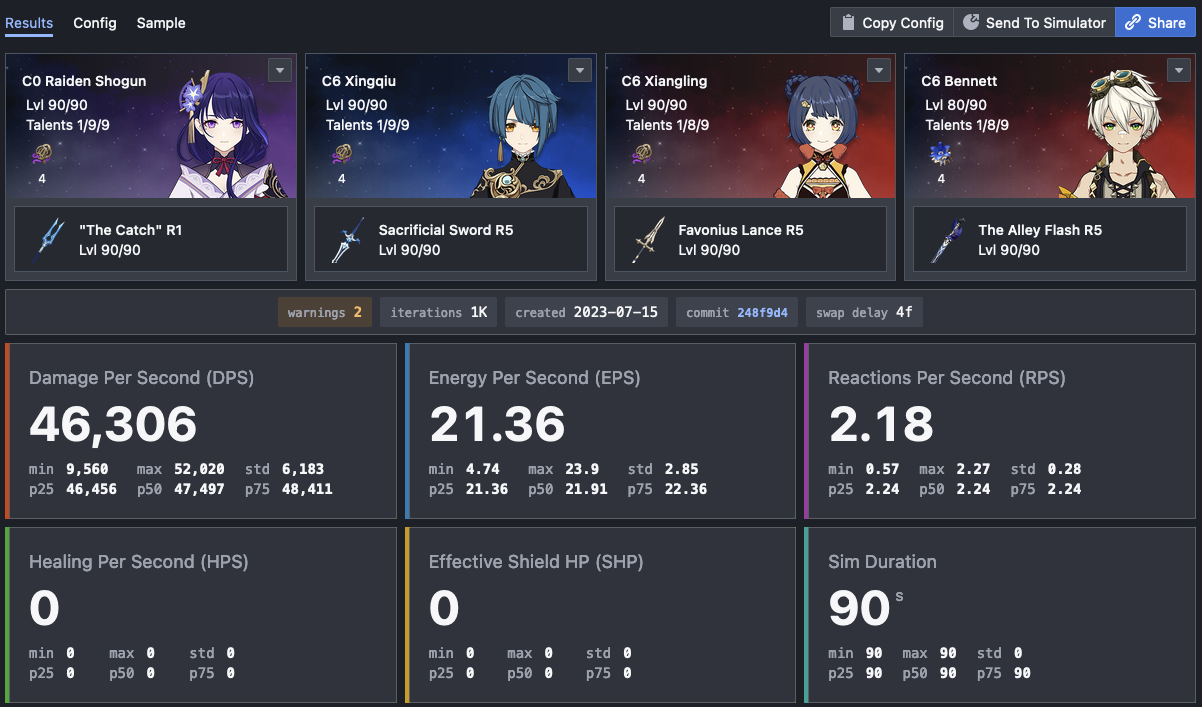
Search area
Use the middle buttons when you do not remember an internal key. The sim wants keys like emblemofseveredfate, not the translated full name.
- Characters
- Weapons
- Artifacts
- Enemies
- Actions
- Stats
Config editor
The editor contains the actual simulation. If you are new, read it from top to bottom:
- Options decide how long and how many times the sim runs.
- Target decides the enemy level, resistance, position, radius, and HP.
- Character setup lines define the team, weapons, sets, stats, energy, and HP.
- Active decides who starts on field.
- The rotation tells the sim what buttons to press.
Starter template
Replace charactername, weaponname, and setname with the real sim keys. The enemy below has level 100, 10% resistance, and very high HP so it does not die early.
options iteration=1000 duration=90 swap_delay=12;
target lvl=100 resist=0.1 radius=2 pos=0,2.4 hp=999999999;

charactername char lvl=90/90 cons=0 talent=9,9,9;
charactername add weapon="weaponname" refine=5 lvl=90/90;
charactername add set="setname" count=4;
charactername add stats hp=4780 atk=311 er=0.518 atk%=0.466 cr=0.311 cd=0.622;

active charactername;

for let i = 0; i < 4; i = i + 1 {
  charactername skill;
  charactername burst;
}
Config button
- On the live website, normal users should not need local server settings.
- In local development, this is where the local sim server URL can be enabled.
- Generate sample fills a starter config when you only want to test the UI.
Tools button
- Import from Enka
- Import from GO
- Load copied configs
- Open helper dialogs added later
Run and results
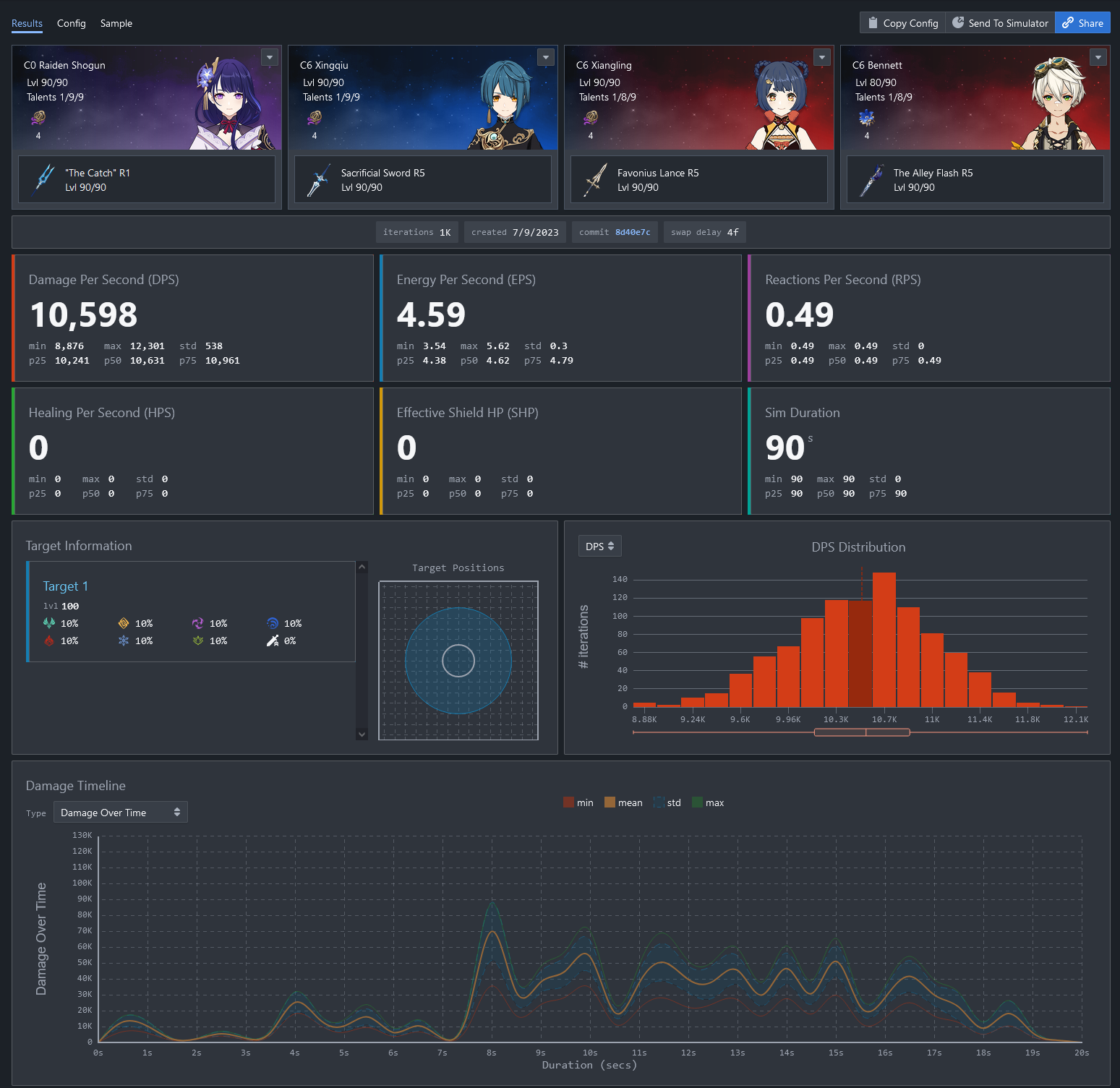
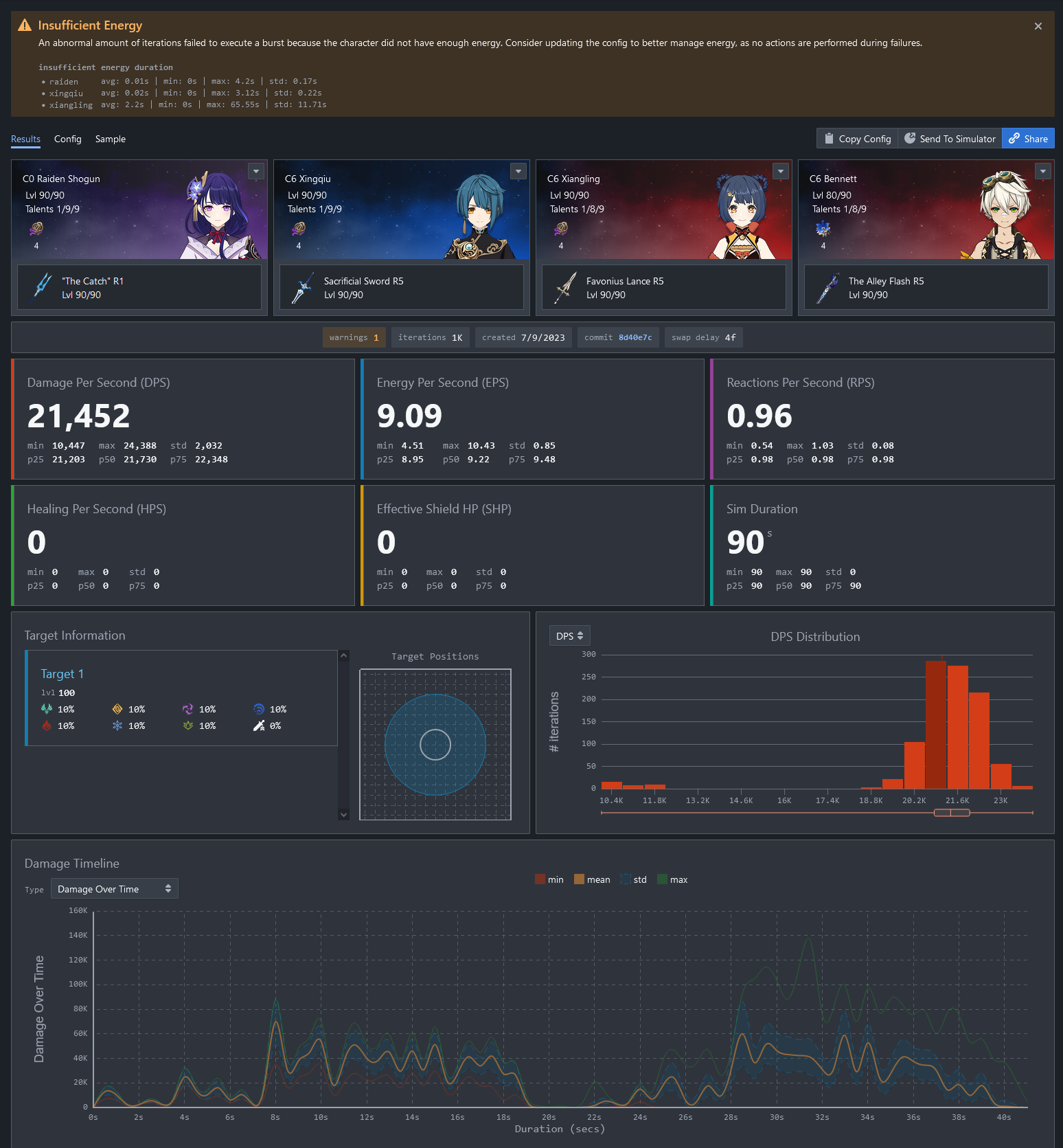
When you press Run, the simulator sends the current config to the backend and waits for the result.
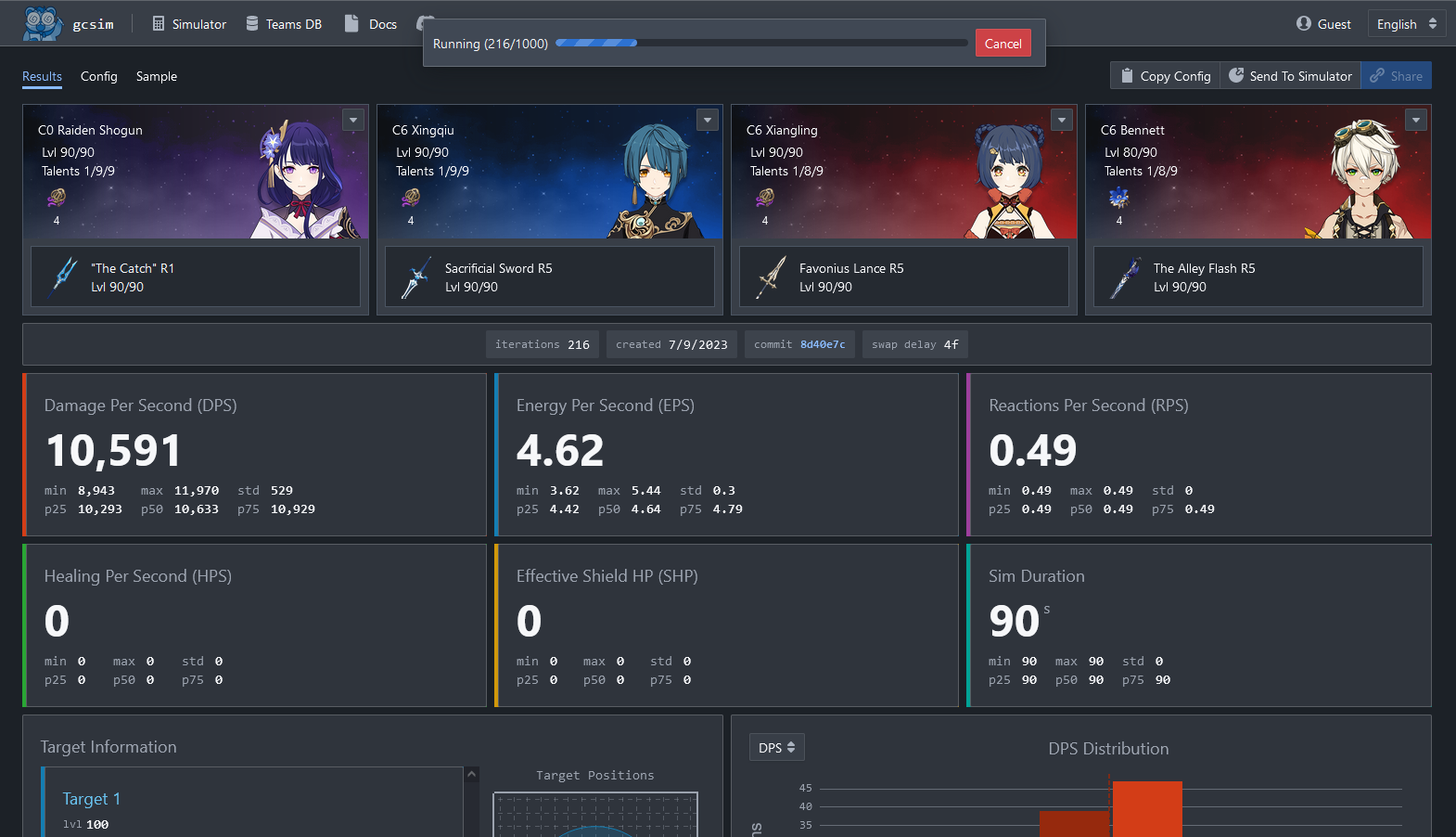
- Average DPS
- Damage distribution
- Energy
- Sample log
- Warnings or import errors
If Run keeps loading
- Check that the config has a valid target line.
- Check that every team member has a valid char line.
- When testing locally, confirm the local server URL is correct.
- When testing the public site, confirm the Railway backend is reachable.
- If the result only simulates the first seconds, the rotation probably ends too early.
Quick read
Build the team first, verify the config, then run and inspect the warnings. Most failures are caused by one wrong key, one missing target, or one action that waits forever.